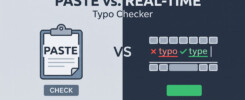
AI Chrome extensions to check spelling and grammar all promise the same thing, but they differ in ways that only show up once you’ve installed one and started using it every day. Some catch real mistakes in context, some only repeat what the browser already does, and some ask for more access than they need. TypoGuard is one of them, so this guide explains what to compare, and what to ask of any extension before you install it.
What Sets Them Apart
The first difference is how the extension reads your text. A basic one compares each word with a dictionary, the same method your browser already uses. An AI-based one reads the sentence as a whole, so it can catch a correctly spelled but wrong word, a duplicated word, or a grammar slip. That’s the main reason to install one at all.
The second difference is where it works. Many extensions work on plain pages and then fail inside the dynamic text boxes of Gmail, chat tools, booking dashboards, and AI prompts. The third is how it shows the fix: inline and one click, or in a side panel that interrupts what you’re doing. The fourth is price, and what happens when you hit the free limit.
What the Permissions Mean
Any extension that checks text on every website needs broad access to those sites. Chrome shows this at install time as a warning that the extension can read and change your data on all websites, and Chrome’s own documentation of extension permissions lists what each permission allows. The warning is not a sign that something is wrong. It’s how an extension can see the text field you’re typing in.
It does mean you should look at who made the extension, read its privacy policy, and understand where your text goes. An AI extension sends the text it checks to an AI model to produce corrections, so the policy matters more than it would for a simple dictionary tool.
Questions to Ask Before You Install
Does it catch wrong-but-correctly-spelled words, or only misspellings? Does it work in the apps where you really write, like Gmail and AI chat? Is the fix inline and one click? What does the free tier include, and what does the paid tier cost? Does it say clearly what it does with your text? And does it work on the device you use, since many extensions are desktop only?
If an extension can’t answer most of these on its page, treat that as information.
How TypoGuard Fits
TypoGuard is a desktop Chrome extension, built for Chrome on a laptop or desktop computer, with no mobile app version. It is powered by Google Gemini and checks your text as you type, catching grammar problems, wrong-but-correctly-spelled words, and duplicated words. The fix appears inline, and one click applies it. It works in Gmail, Facebook Messenger, Airbnb, the Booking.com extranet, ChatGPT, Claude, and Gemini, plus any other site with a text field. To see how the free options compare, the guide to free grammar checkers sets out what to expect at each level.
The free tier includes 100 corrections per month. If you write a lot, Premium offers around 2,000 corrections per month for $6.99 per month, or $49.99 per year, which keeps it affordable next to most paid writing suites.
Getting Set Up
Installing TypoGuard takes under a minute. On your desktop or laptop, open Chrome, visit typoguard.vip or search “TypoGuard” in the Chrome Web Store, click Add to Chrome, and confirm. Then start typing in any text field, and corrections appear as you go.
The Bottom Line
The best AI spelling and grammar extension for you is the one that catches real mistakes in context, works where you write, shows the fix in one click, and is clear about price and privacy. Checking those five things takes a few minutes, and it’s worth doing before an extension gets access to everything you type.
Add TypoGuard to your desktop Chrome browser at typoguard.vip